Connect Any MCP Server to Your AI Agent
If you have been building AI agents in n8n, you have probably hit the same wall. You want the agent to call an external API, so you add an HTTP Request node, wire it as a tool, configure the endpoint, handle the auth, map the response schema. Then you realize you need five more operations from the same API, which means five more nodes and five more configs.
MCP solves this. One node, one credential, and the AI figures out which operation to call based on what the user asks. This tutorial walks through exactly how it works in n8n, using PDF Generator API as a real example.

What MCP Actually Is (The Short Version)
Model Context Protocol (MCP) is an open standard that lets an AI ask an external service what it can do. The service responds with a list of tools, their names, and descriptions. The AI reads that list and picks the right tool at runtime.
You are not telling the AI “call this specific endpoint when the user asks for X.” The MCP server tells the AI what exists, and the AI decides when to use it.
The PDF Generator API MCP server (also available on Smithery and MCP.so) exposes 49 tools across six capability areas.
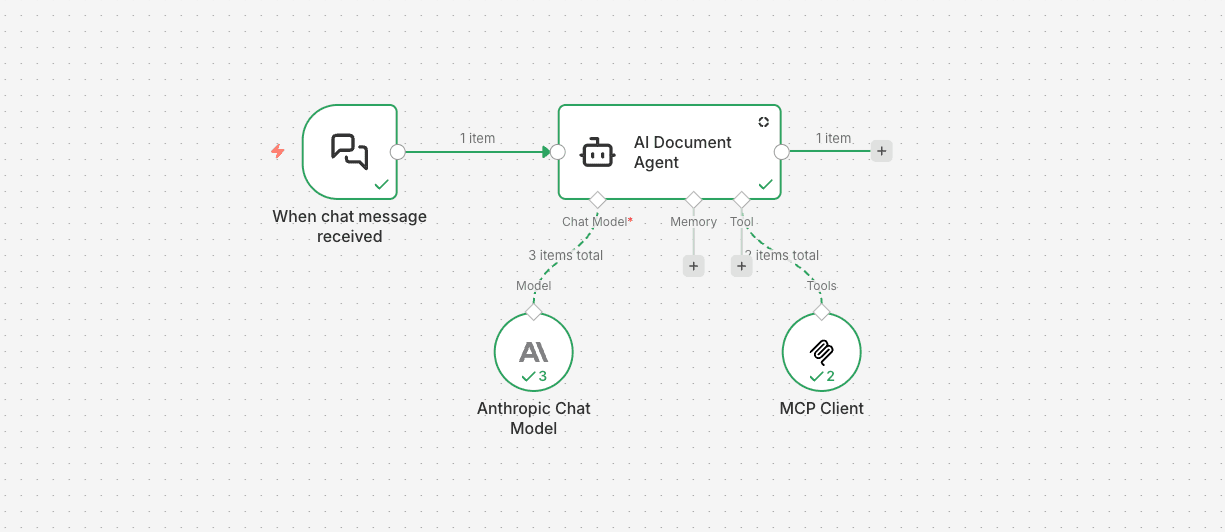
Build the Workflow: Four Nodes
We prepared 2 minutes long video tutorial where you can see all the steps. You can download free n8n worfklow here.

1. Create the credential first
PDF Generator API uses Bearer JWT auth. The JWT is signed with three values from your account: your API Key (the iss claim), your Workspace Identifier
(the sub claim, typically your workspace email), and your Secret Key (used to sign the token).
Get all three from app.pdfgeneratorapi.com under Account Settings > API Integration.
A quick way to generate the token in Node.js:
const jwt = require('jsonwebtoken');
  const token = jwt.sign(    { iss: 'YOUR_API_KEY', sub: 'YOUR_WORKSPACE_IDENTIFIER' },    'YOUR_SECRET_KEY',    { algorithm: 'HS256', expiresIn: '24h' }  );
For n8n, use a 24h TTL or longer. MCP sessions are long lived and a mid session token expiry will cause tool calls to fail with 401 Unauthorized.
In n8n, create a Header Auth credential:
- Name:
Authorization - Value:
Bearer <your-generated-token>
2. Add the Chat Trigger
Node type: @n8n/n8n-nodes-langchain.chatTrigger
Default settings work fine. This opens the built in n8n chat interface so you can test the agent directly from the canvas.
3. Add the AI Agent
Node type: @n8n/n8n-nodes-langchain.agent
The system prompt is where you actually control how the agent behaves. Here is a practical starting point:
You are a document generation assistant with access to PDF Generator API.

  When a user asks to create a document:
  1. Call get_templates to see what templates are available
  2. Present the options or pick the obvious match if there's only one
  3. Ask for the data needed (customer name, amounts, dates, line items)
  4. Call generate_document with the template_id, a data object, and output set to "url"
  5. Return the PDF URL directly

  For everything else (watermarks, optimization, URL to PDF, electronic invoices), use the appropriate tool. Keep responses short and lead with the result.
The quality of the system prompt has a bigger impact on agent behavior than anything else in this workflow. Vague prompts lead to the AI asking unnecessary clarifying questions. Specific prompts get you straight to results.
4. Add the MCP Client Tool
Node type: @n8n/n8n-nodes-langchain.toolMcpClient
Settings:
- SSE Endpoint:
https://mcp.pdfgeneratorapi.com/mcp - Authentication: Custom Auth, then select your Header Auth credential
- Tools to include: All
5. Wire the connections
- Chat Trigger → AI Agent via the
mainport - Claude model → AI Agent via the
ai_languageModelport - MCP Client Tool → AI Agent via the
ai_toolport
The tool port placement matters. If you accidentally connect the MCP node to the main port, it will not be recognized as a callable tool by the agent.
What Happens When You Send a Message
Type “List my available templates” into the chat.
The AI Agent sends your message to Claude along with the full tool list it received from mcp.pdfgeneratorapi.com/mcp. Claude reads the request, scans the tools, picks
get_templates, and tells the AI Agent to call it. The MCP Client Tool relays that call to the MCP server. The server returns your template list. Claude formats it and sends back the
response.
Now type “Generate an invoice for Acme Corp, $2,400, due June 30.”
Claude now needs two tool calls: first get_templates to find the invoice template, then generate_document with the template ID and the data you provided. Both happen within
a single message, automatically, and you get back a direct PDF URL.
Other things worth testing:
- “Convert this URL to a PDF: https://example.com” calls
convert_url_to_pdf - “Add a CONFIDENTIAL watermark to this PDF: [url]” calls
add_watermark - “Generate 20 invoices for these customers: [data]” calls
generate_document_batch - “Create an XRechnung e-invoice for order #1042″ calls
create_xrechnung_einvoice
None of those operations were configured in n8n. The server declared them, and Claude knew how to use them from the descriptions.
The Bigger Picture
MCP is still early. Not every API has an MCP server yet. But the ones that do cover a lot of ground, and the n8n MCP Client Tool works with any of them that use SSE transport.
The real shift here is not technical. It is that you stop thinking about “which HTTP endpoint does this operation map to” and start thinking about what capability you want the AI to have. The routing becomes the AI’s problem, not yours.
For PDF generation specifically, that means you can build an agent that handles template selection, data filling, watermarking, optimization, and batch jobs in a single conversational interface, with one node managing all 49 operations.
Need help with the setup? Reach out at support@pdfgeneratorapi.com