Since 28 June 2025 the European Accessibility Act (EAA) applies across the EU. Most of the conversation has been about websites and apps, but the documents a business sends its customers are part of the same service: invoices, bank statements, order confirmations, contracts, tickets and insurance policies. If a customer who uses a screen reader cannot read them, the service is not accessible.
Most of those documents are PDFs, and most PDFs are produced automatically from data. That is good news, because it means you can fix accessibility once, in the place where documents are created, instead of repairing thousands of files afterwards.
This guide covers what the EAA means for your PDFs, what actually makes a PDF accessible, and how to generate accessible PDF/UA documents with PDF Generator API by adding one parameter to the API call you already make.
What the European Accessibility Act means for PDFs
The EAA (Directive (EU) 2019/882) sets accessibility requirements for a list of consumer-facing products and services. The services in scope include:
- E-commerce, meaning online shops and marketplaces selling to consumers
- Consumer banking services
- Electronic communications and some passenger transport services
- E-books and the software used to read them
The Act does not list file formats one by one. It requires the service, and the information that comes with it, to be perceivable and usable by people with disabilities. In practice, national authorities and the harmonised standard EN 301 549 point to WCAG for web content and to PDF/UA (ISO 14289) for PDF documents. If your customers receive their invoice or contract as a PDF, that PDF is part of what you deliver.
A few points come up in almost every conversation:
- Microenterprises are exempt for services. Companies with fewer than 10 employees and no more than €2 million in turnover or balance sheet total do not have to meet the service requirements. Their larger customers still do, so if you sell software to banks or retailers, your output matters to them.
- There is a transition period for some existing services, running until 28 June 2030. New documents and new services do not get that grace.
- Enforcement has started. Market surveillance authorities in several countries are active, and in France a court has already ordered a major grocery retailer to make its online services accessible within six months.
What makes a PDF accessible
A PDF can look perfect and still be unreadable for a screen reader. What a sighted reader sees is only the visual layer. Assistive technology reads a separate, invisible layer called the tag tree. An accessible PDF, in the sense of PDF/UA, has:
- Tags for every piece of content. Each block of text, image and table is marked as what it is: a heading, a paragraph, a table, a figure. Decoration such as lines and background shapes is marked as an artifact so it is skipped.
- A logical reading order. The screen reader follows the tags, not the position on the page, so the order has to make sense.
- Real headings. Headings let a user jump through a document instead of listening to it from the top.
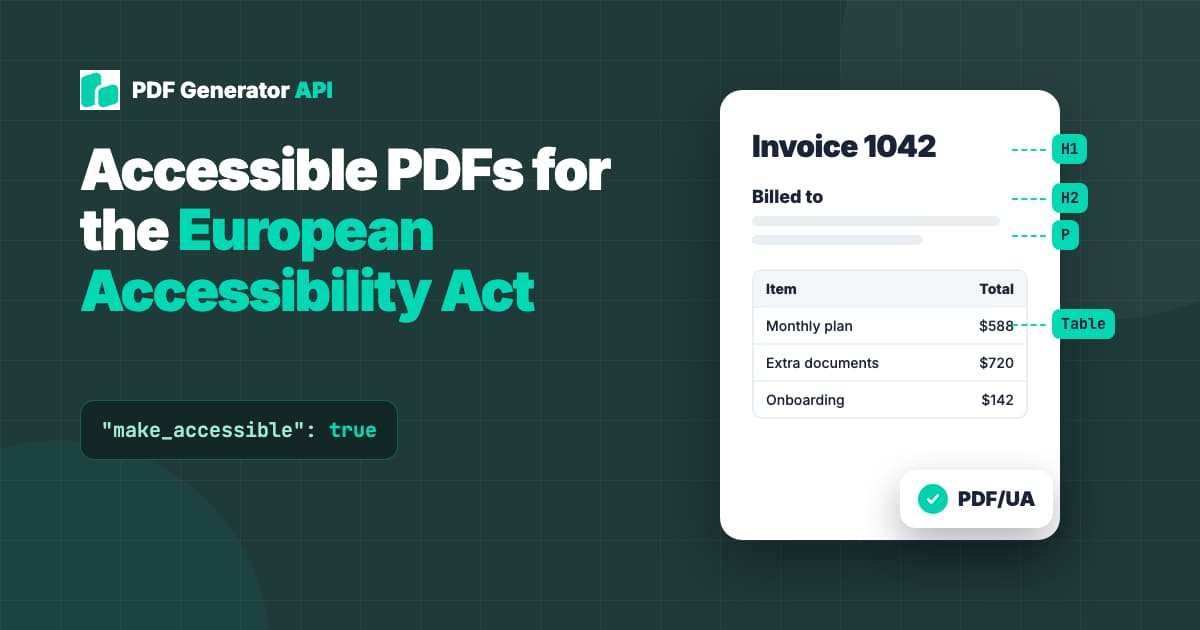
- Table structure. Header cells are marked as headers, so a value like “$720” is announced together with its column, for example “Total”.
- A document language and a title. The language tells the screen reader how to pronounce the text. The title is what the user hears when the file opens.
- The PDF/UA identifier, which declares that the file is meant to conform to ISO 14289.
Most PDFs created by reporting tools, invoice systems and HTML converters have none of this, or only part of it. That is why “our PDFs are generated, so they are fine” is usually the wrong assumption.
Fix it at generation, not afterwards
There are two ways to end up with accessible PDFs.
Remediation means taking finished PDFs and adding tags afterwards, by hand in Acrobat or with an automated tool. It works, but it is slow, and every new document has to go through the same step.
Accessible by design means the document is created with its structure from the start. When a PDF is generated from a template and JSON data, the system already knows which text is the title, which block is a table and which row is the header. Turning that knowledge into tags is far cheaper than reconstructing it later.
PDF Generator API supports both. You can switch on accessibility for every document you generate, and you can send existing PDFs to a dedicated endpoint to get them back tagged.
How to generate accessible PDFs with PDF Generator API
Step 1: Mark your headings in the template
In the template editor, set the text type of your heading labels to H1 or H2. Use H1 for the document title, for example “Invoice 1042”, and H2 for section titles such as “Billed to” or “Payment details”. Everything else stays as normal text.
Two habits make the result better:
- Keep each heading on a single line by giving the label enough width.
- If a chart or image carries information, say the same thing in the text next to it, so nobody depends on the picture alone.
Step 2: Add make_accessible to your API call
Add make_accessible: true to the Generate document request. Use the metadata object to set the document language and author.
curl -X POST "https://us1.pdfgeneratorapi.com/api/v4/documents/generate" \ -H "Authorization: Bearer YOUR_JWT" \ -H "Content-Type: application/json" \ -d '{ "template": { "id": 123456, "data": { "invoice_number": "1042" } }, "format": "pdf", "output": "url", "name": "Invoice 1042", "make_accessible": true, "metadata": { "author": "Your Company", "language": "en" } }'The generated file keeps exactly the same design. What changes is the invisible layer: the content is tagged, headings become real headings, tables get header cells, and the language, title and PDF/UA identifier are set. The language value accepts other languages too, so a Czech invoice can be generated with "language": "cs".
A practical note for testing: the accessibility step runs on regular generations. Requests with testing: true skip it, so test with a real request when you check the output.
Step 3: Make existing PDFs accessible
For PDFs you already have, or PDFs produced by another system, send them to the make accessible endpoint. It accepts a public file URL or a base64 encoded file.
curl -X POST "https://us1.pdfgeneratorapi.com/api/v4/pdfservices/make-accessible" \ -H "Authorization: Bearer YOUR_JWT" \ -H "Content-Type: application/json" \ -d '{ "file_url": "https://example.com/statement.pdf", "name": "Statement October", "output": "base64", "metadata": { "author": "Your Company", "language": "en" } }'This is also the route for HTML to PDF conversions: convert first, then pass the result through the endpoint.
How to check the result
You do not have to take anyone’s word for it, including ours. Two free tools make the check easy:
- veraPDF, the open source validator backed by the PDF Association, checks a file against the PDF/UA rules.
- PAC by axes4 checks PDF/UA conformance and shows you the tag tree and a screen reader preview.
When we ran one of our own invoice templates through veraPDF, the regular output failed 109 checks. The same template generated with make_accessible: true passed with zero failures.
A validator checks the rules a machine can check. To finish, open the file with a screen reader once, NVDA on Windows or VoiceOver on Mac, and listen to whether the headings and the reading order make sense. For a template you do this once, and every document generated from it afterwards follows the same structure.
Pricing and availability
The Accessibility API is available on the Basic plan and above. Each accessible document uses additional credits on top of the regular generation. See the pricing page for current plans, or start a free trial to try it on your own templates.
Frequently asked questions
Does the European Accessibility Act apply to PDF documents?
The Act applies to services such as e-commerce and consumer banking, including the information provided as part of them. Invoices, statements and contracts delivered as PDFs are part of that information, which is why PDF/UA is the standard most teams work towards for their documents.
What is PDF/UA?
PDF/UA (Universal Accessibility) is the ISO 14289 standard for accessible PDF files. It defines how content must be tagged so that assistive technology such as screen readers can read and navigate the document.
Will making a PDF accessible change how it looks?
No. Tagging adds an invisible structure layer. In our tests the accessible version rendered identically to the original.
Can I make PDFs from other systems accessible?
Yes. The make accessible endpoint takes any PDF by URL or as a base64 string and returns a tagged version.
Which languages are supported?
You set the document language in the metadata object of the request, for example en, de, fr or cs. The screen reader uses it to pick the right pronunciation.
Get your documents ready
The European Accessibility Act made accessible documents a requirement, and your customers notice the difference long before a regulator does. If you already generate documents with PDF Generator API, accessibility is one parameter away. If you are still evaluating, our PDF accessibility and compliance page covers the full feature set.
Want to see it on your own templates? Book a call with me and we will go through it together.